Quick answer
Error codes and identifiers should be copied exactly even when the surrounding explanation is translated.
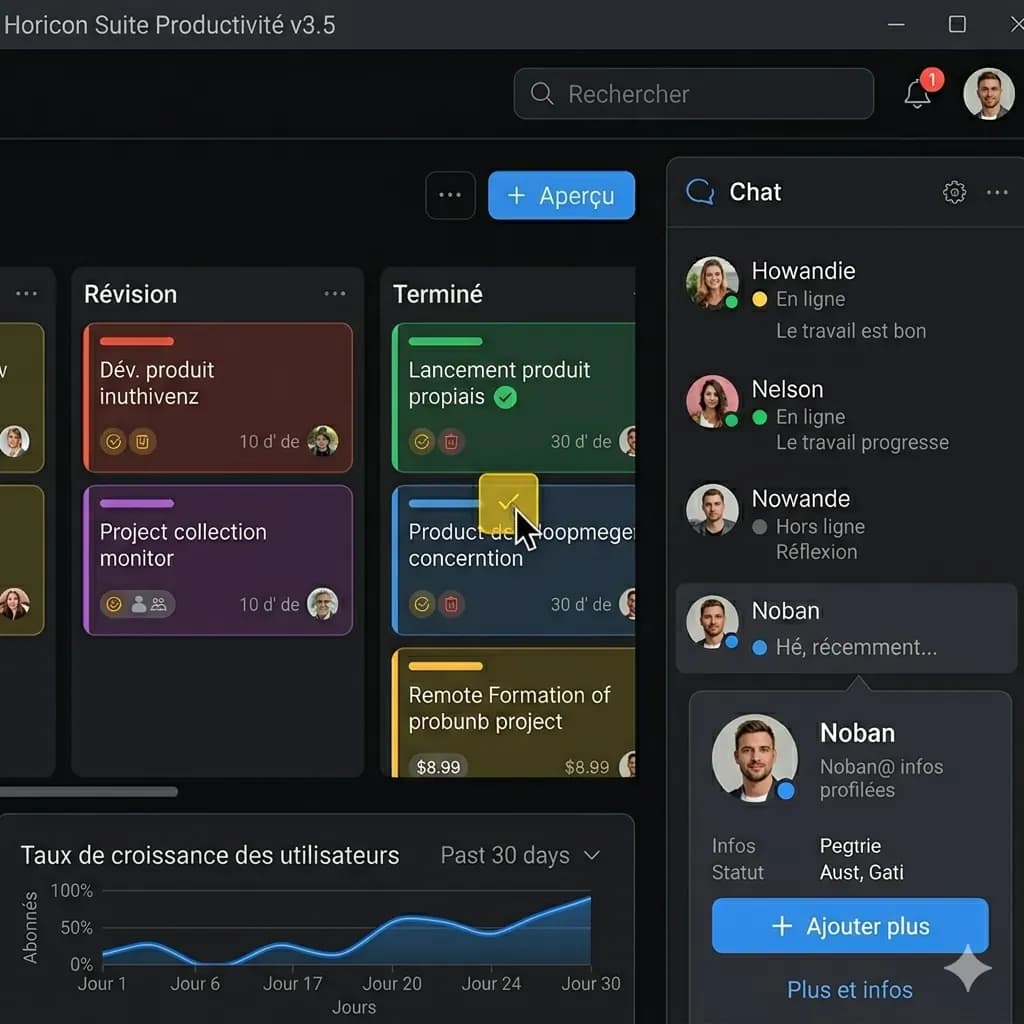
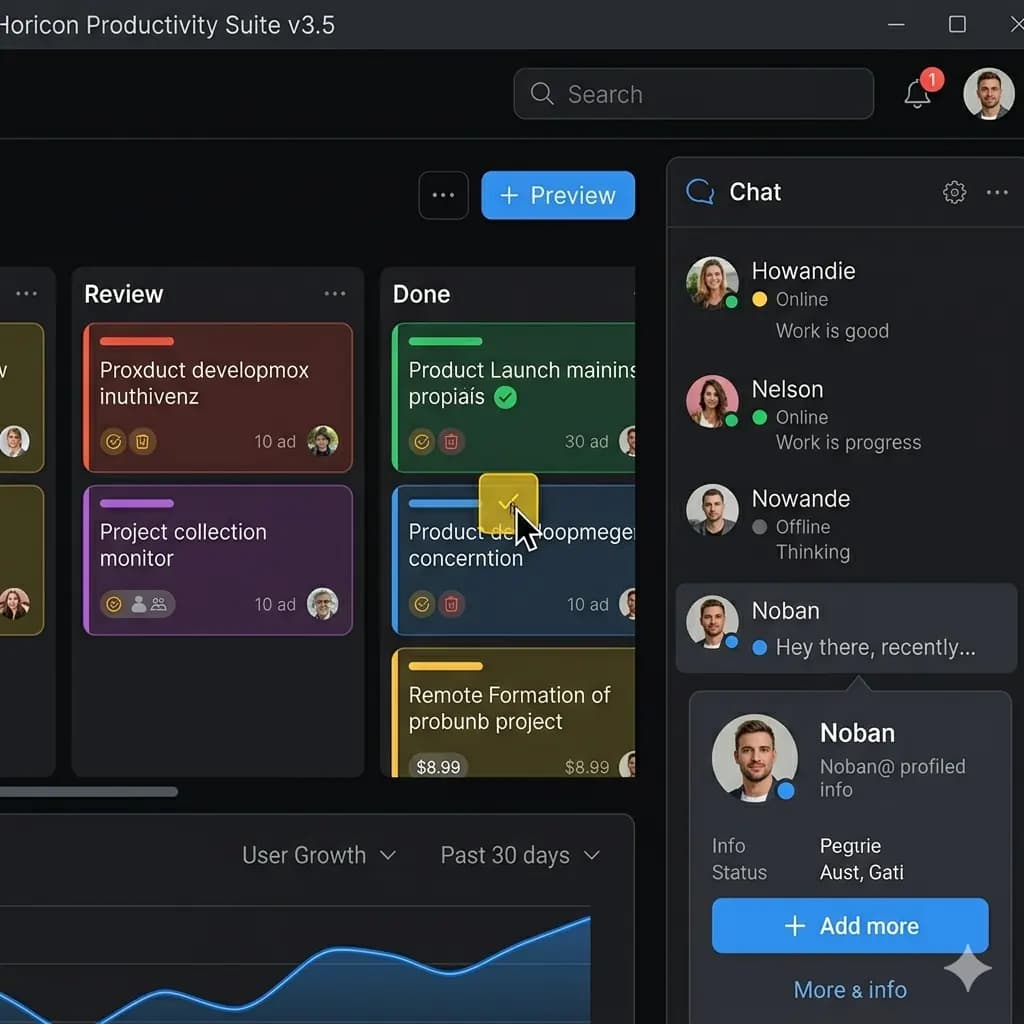
A screenshot is a user interface, conversation, or sequence of panels rather than a loose block of text. A useful English result keeps labels, buttons, bubbles, warnings, and content cards attached to the correct screen region.
- Capture the exact failure state
- Translate the full dialog
- Copy codes from the source image
Ready to test this workflow on your own image?
Prepare the source before translation
Capture the whole dialog plus enough of the app title, active operation, and affected field to explain when the error occurred.
Keep an untouched copy of the source beside every crop or page so the English result can always be checked against the original.
- Keep the full dialog title
- Include error code and affected field
- Redact private paths or account names
Step-by-step translation workflow
Translate the complete error state first, then make a tighter crop if the body text is too small; keep both results for technical support.
Open Translate Screenshot to English, upload the prepared source, translate it to English, and download each result only after the visual structure has been reviewed.
- Capture the exact failure state
- Translate the full dialog
- Copy codes from the source image
- Use the result as support context
Quality review checklist
Review the English image beside the original. Accuracy includes text meaning, numbers, labels, and whether each translation still belongs to the correct visual region.
| Review area | What to check | Action if it is wrong |
|---|---|---|
| Codes | Letters, numbers, and punctuation are unchanged | Copy from the source |
| Actions | Buttons remain in the correct order | Compare left-right placement |
| Context | The affected app or field is visible | Keep a wider reference crop |
Limits and safety notes
File paths, command names, product versions, and hexadecimal codes can look like language but must not be paraphrased.
Screenshots can contain names, account details, order numbers, notifications, or private conversations. Crop or redact anything that is not needed before uploading. Images are processed temporarily and deleted after 24 hours.
- Codes translated as words
- Private file paths
- Cropped dialog titles
- Buttons detached from the message
Related tools
Translate Screenshot to English
Translate app, game, chat, mobile, and web screenshots while keeping the screen structure readable.
App Screenshot Translator
Translate app screens, settings, onboarding, and dialog boxes.
Game Screenshot Translator
Translate game menus, dialogue, quests, and item descriptions.
Layout-Preserved Image Translator
Keep labels and translated text near the visual region they describe.
Related guides
How to Translate a Social Media Screenshot
Translate posts, captions, comments, story frames, and discussion screenshots while preserving reply structure and reducing privacy exposure.
How to Batch Translate Screenshots and Review Every Result
Organize app screens, game captures, chats, and research screenshots before adding them to a multi-image translation queue.
How to Translate a Long Screenshot Without Losing Context
A practical workflow for translating scrolling screenshots, long chat captures, product pages, and mobile screens without turning the result into an unreadable strip.
FAQ
Should I search using the translated error code?+
Search the original code exactly and use the English explanation as context. Codes, product names, and version strings should not be translated.
Can I try this image translation workflow for free?+
Yes. Sign in to receive 20 free welcome credits once; standard image translation starts at 10 credits.
Will the English result preserve the original layout?+
The workflow is designed to render translated text back into the image while keeping it near the original visual region. Clear, well-cropped sources produce the most reviewable results.
Try it with your own image
Upload a real image and get an English result with the layout preserved where possible.